
I had created a wedding album, and the parents of the bride had purchased their copy. The parents of the groom had some changes they wanted to make. There were a few pages, like the one above that they wanted as is, there were a couple of pages that they didn’t want, and several pages that they were hoping to swap a few images. They did live close by, so I headed over to their house with just my iPad. Yup, just my iPad. I wanted to be able to sit side by side with them and draw right on the pages of the electronic book. Best case would be to be able to drag the images around, but that wasn’t going to happen. I would settle to being able to pen in new numbers and draw arrows for moving images around. To accomplish this, I used two apps.
The first was Penultimate. I used this app with a digital pen to draw on.

I created a notebook for this project with the amazing title of Album Notes. I then, page by page inserted a page spread from my album (exported previously) into the notebook. I now had images that I could draw on.

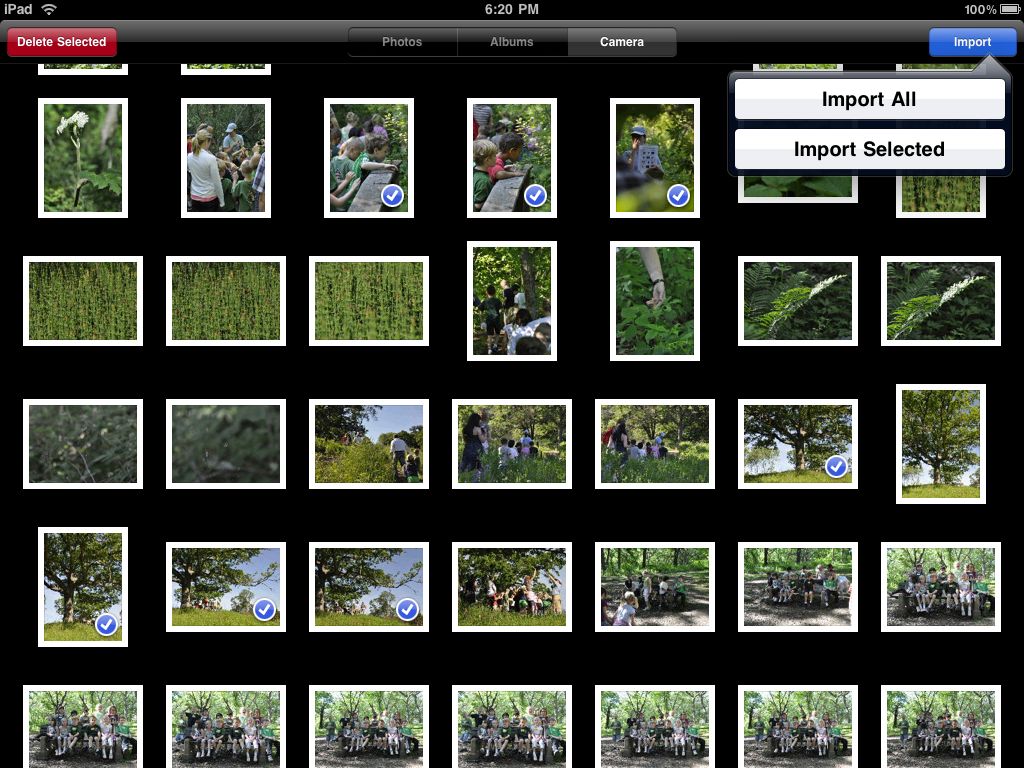
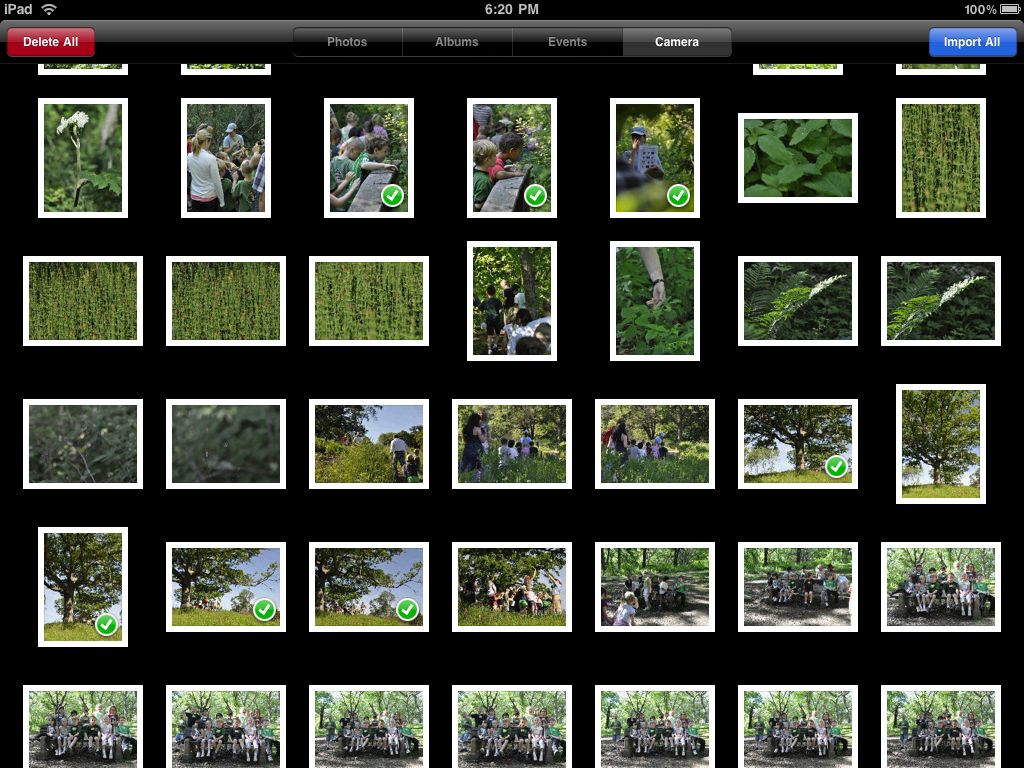
I also used the Zenfolio app. I used it to move copies of all the wedding images I had online to my iPad. One thing that doing this did was keep the image numbers in sync with what the mother of the groom saw on the website, and meant that I didn’t need a wifi signal. One wish I had was that images that she had picked as favorites could have been synced to the app. She had selected and favorited the images she likely wanted to put in the album on the zenfolio website. If those could have been synced it would have made the process easier as well.

This was the process we went through. First I went through and marked with a big red X all the pages that we were going to get rid of, and ‘want’ on the pages we were keeping without changes. When we found a page that had images that we wanted to swap, we would put an X over the image, and come back to it later.
After this we had a count of the total pages we would have, and a count of the number of images we needed. Then, we would go over to the Zenfolio app, pick some appropriate pictures, come back to Penultimate, and pen them in. As pages were finished, I would mark them as done, so we could identify what pages we needed to work on still.
One of the things that worked well was having a special wacom bamboo pen to write the numbers with. Much better than writing with your finger. One thing that was frustrating was that you can’t swipe back and forth on Penultimate. I needed to go back to the TOC, and then pick the page I wanted. You can press the page number in the lower right, but that just goes in one direction, and I constantly needed to go back. Penultimate also doesn’t like to be sideways like this. I would sometimes get my images upside down, and have to turn and twist the iPad until the image was the right way.
It was also slow. I was doing this on the 1st generation iPad, and it quickly pushed my decision to buying a newer version. When I tried this with an iPad 3, it was like night and day. It went from frustratingly slow to just as responsive as you would expect.
I suppose that I could use a tool that exports my album as a PDF, then use a PDF tool that can annotate a PDF. My pages were exported as individual JPEG’s, so that wasn’t a great options when I was short on time, but might be something I try on a different occasion.